
While Google still dominates the global search market, one can't ignore the growth of Bing over the last few years. More and more businesses are still looking to create Bing Business listings to boost local SEO.
Bing Places for Business helps local customers find your business easily and gives a much-needed boost to your online visibility. Plus, it helps boost customer trust. Because every time someone searches for your business, they know it's legitimate as long as your listing is verified.
But if you're wondering where to get started, that's where this blog will help you. It breaks down everything you should know about Bing business listings and provides a step-by-step guide to get started.
What is Bing Places for Business?
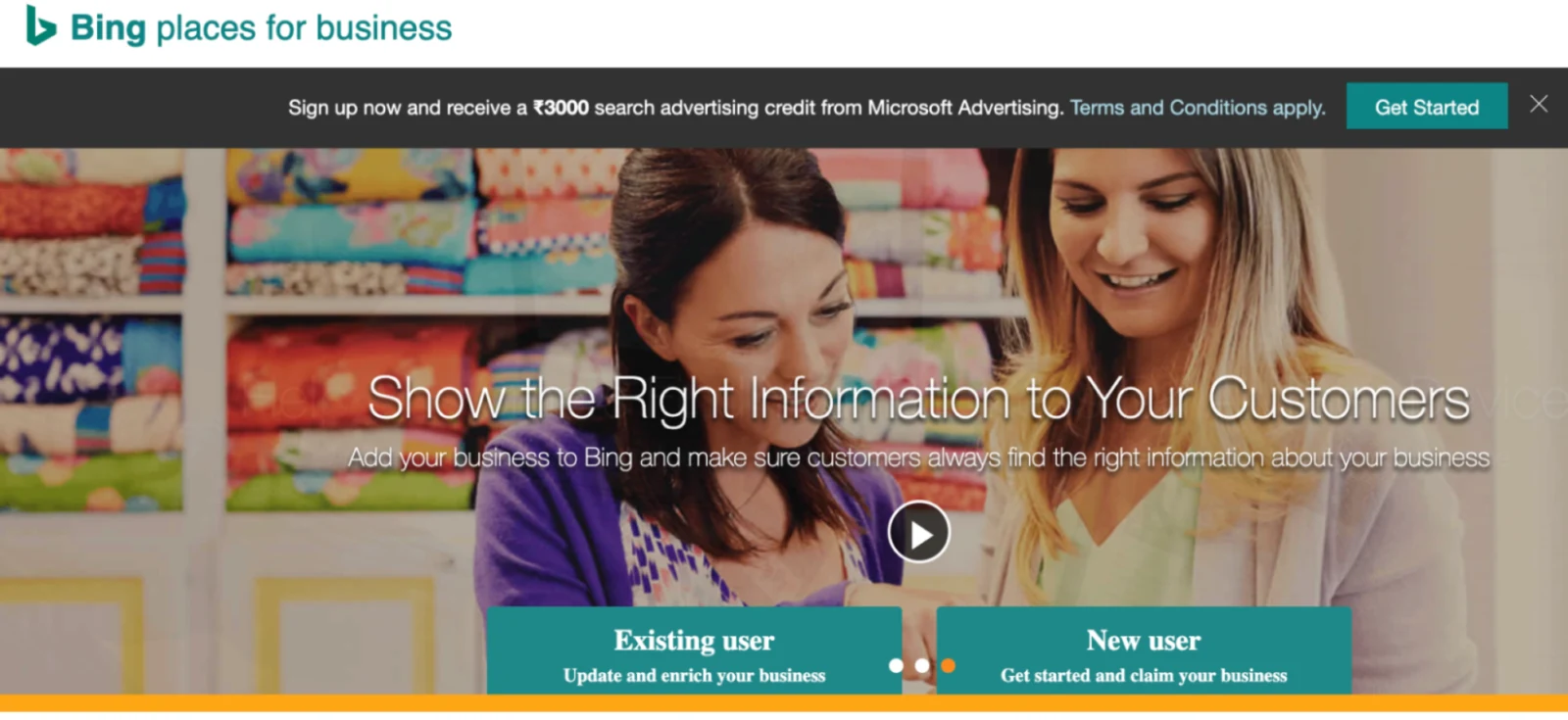
It's a free tool from Microsoft that allows local businesses on Bing to manage their online presence. You can claim and verify your business listing, update your business information, add photos and videos, and track your performance in search results.
Businesses that are included in the list will appear at the top or right of the Bing search results page. Since it's free and easy to get started, there's no reason not to give it a try!
An excellent example of a successful business that's claimed its listing on Bing is Henry Meds. This online healthcare provider offers various programs for weight management, insomnia, and testosterone.
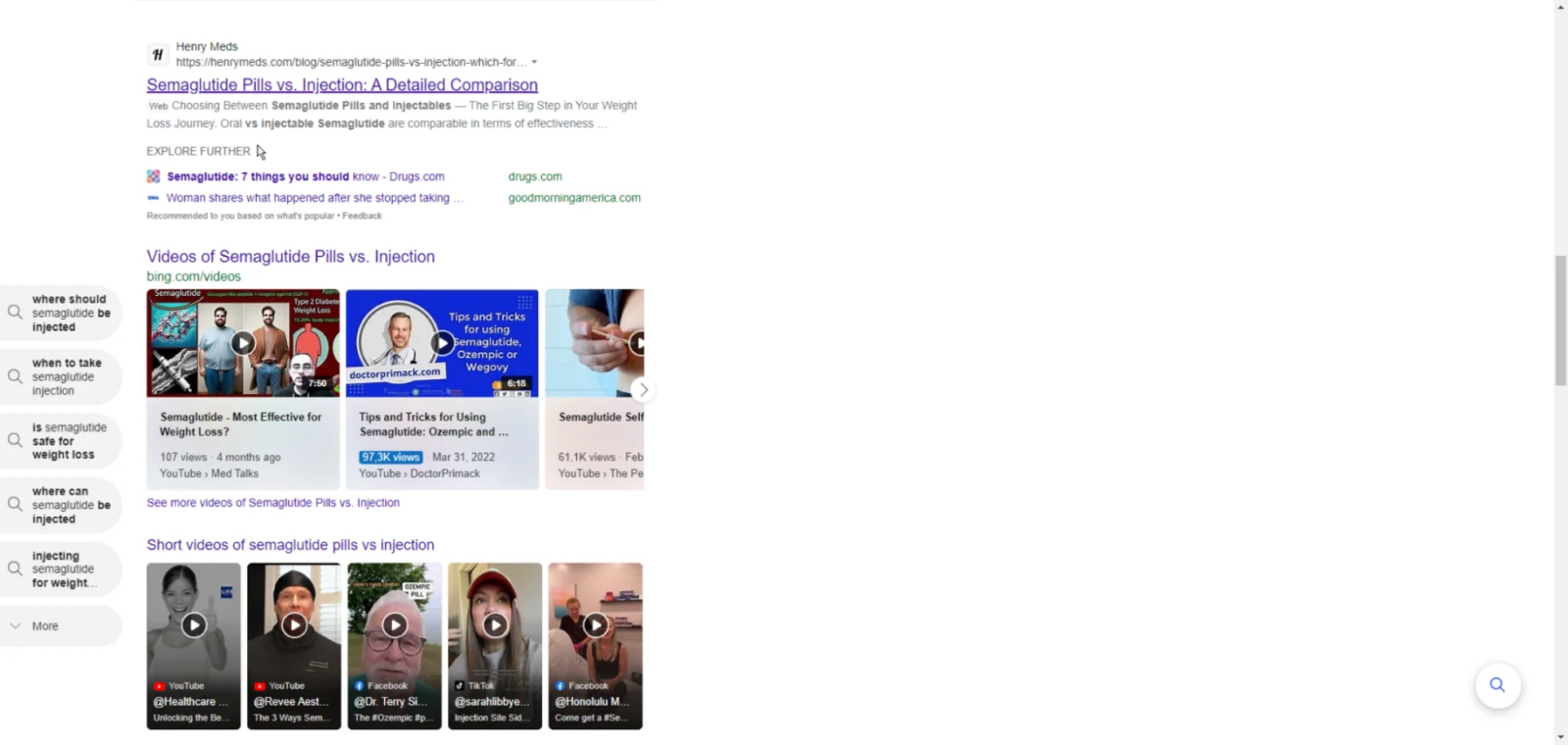
(Screenshot from Bing SERPs)
Henry Meds has improved its search engine rankings by providing high-quality content on its website, such as this informative article on Semaglutide Pills vs. Injection, which has climbed to the second spot on the Bing search results page. This shows how claiming your business in Bing can help you stand out from the competition and attract more potential clients.
Key Benefits of Using Bing Places for Business
Below are a few reasons why your business should be leveraging Bing Places for Business.
1. Increased Visibility
Claiming and verifying your presence on Bing business listings helps you appear in Bing search results when people search for businesses like yours.
2. Improved Accuracy
When your business information, like address, contact number, operating hours, etc., is updated, it ensures that customers have the most accurate information about your business.
3. Enhanced Engagement
Adding photos and videos to your Bing business listing helps attract more customers and boost trust, ensuring your business exists.
4. Performance Tracking
Bing Places for Business analytics helps you track how many people are finding your business listing, the source of traffic, and what they're clicking on.
Claiming an Existing Listing on Bing Places for Business: Step-by-Step Breakdown
Here are some simple steps involved in claiming an existing listing on Bing Places for Business:
Step 1: Navigate and Sign In
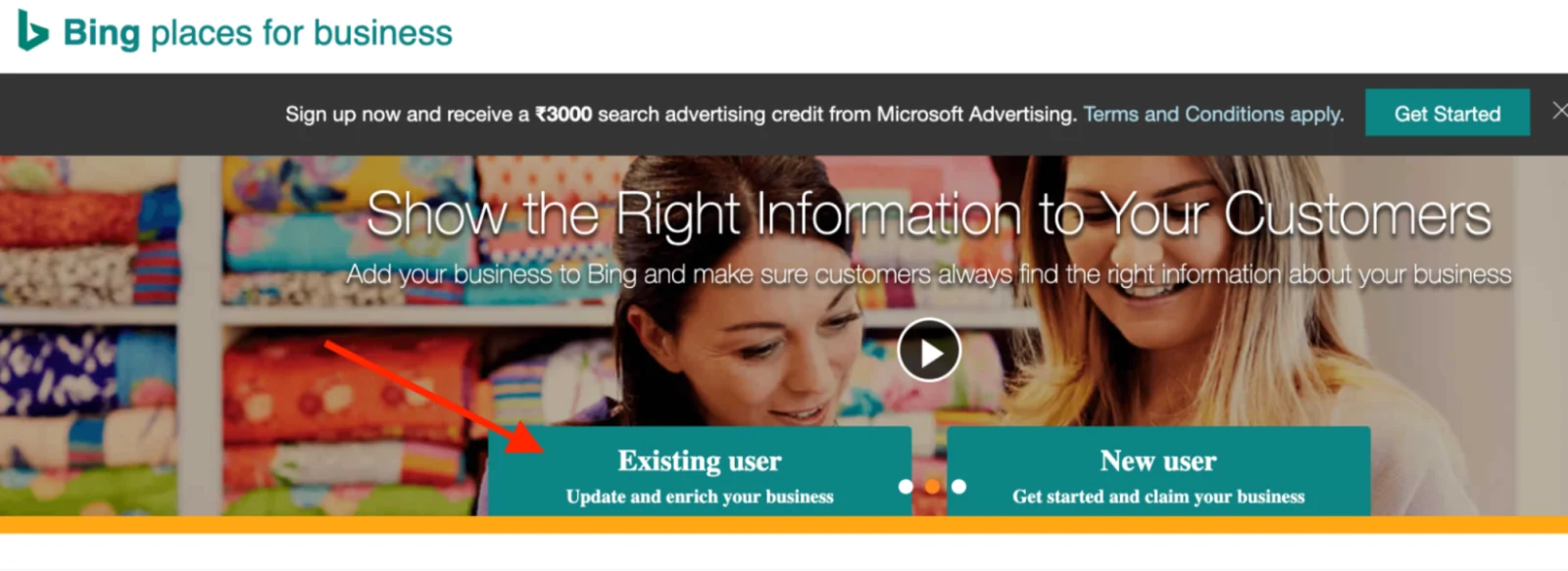
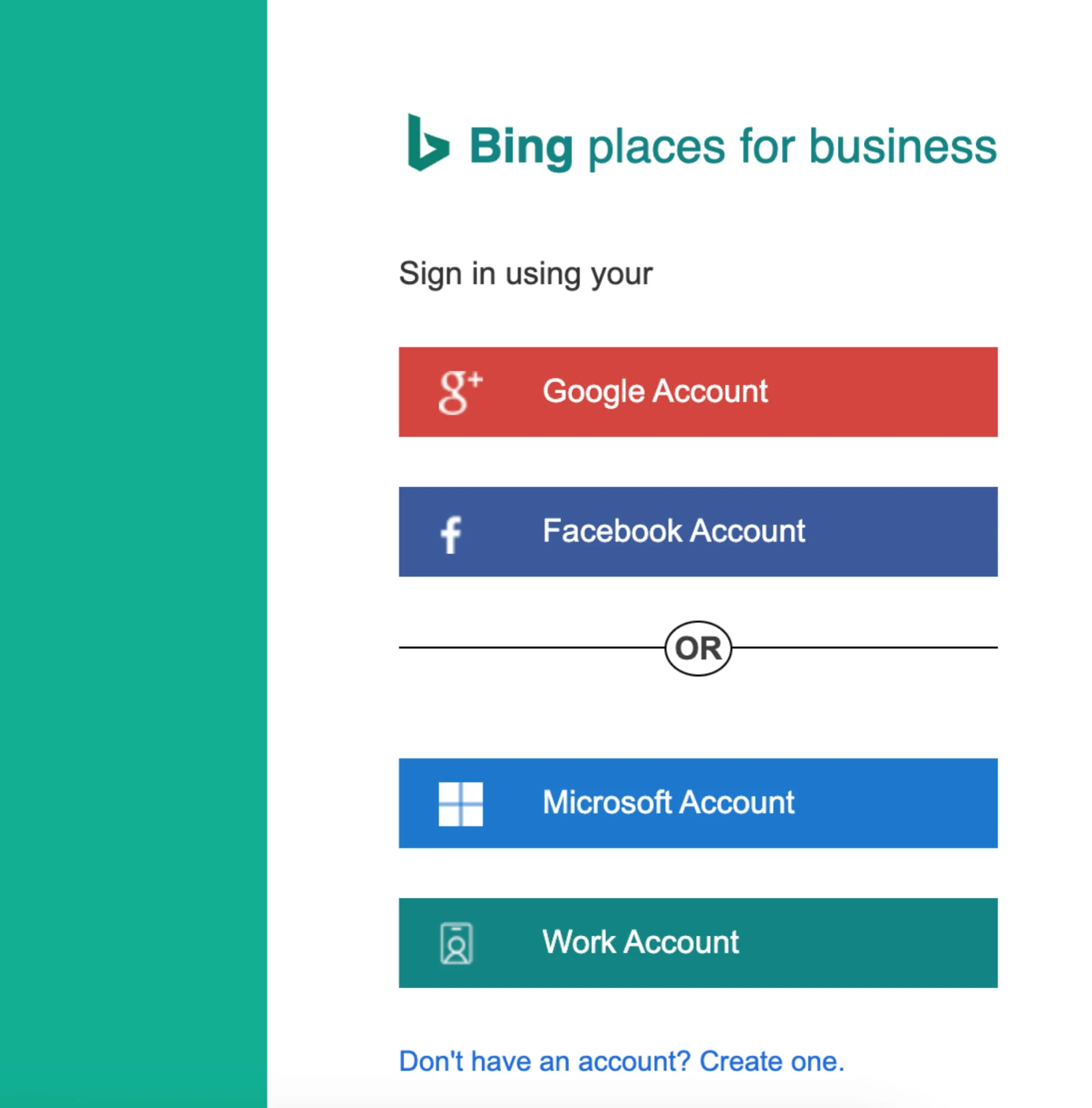
- Head to the Bing Places for Business website: https://www.bingplaces.com/
- Click "Sign in" and enter your Microsoft account credentials (email and password).
Step 2: Search for Your Business
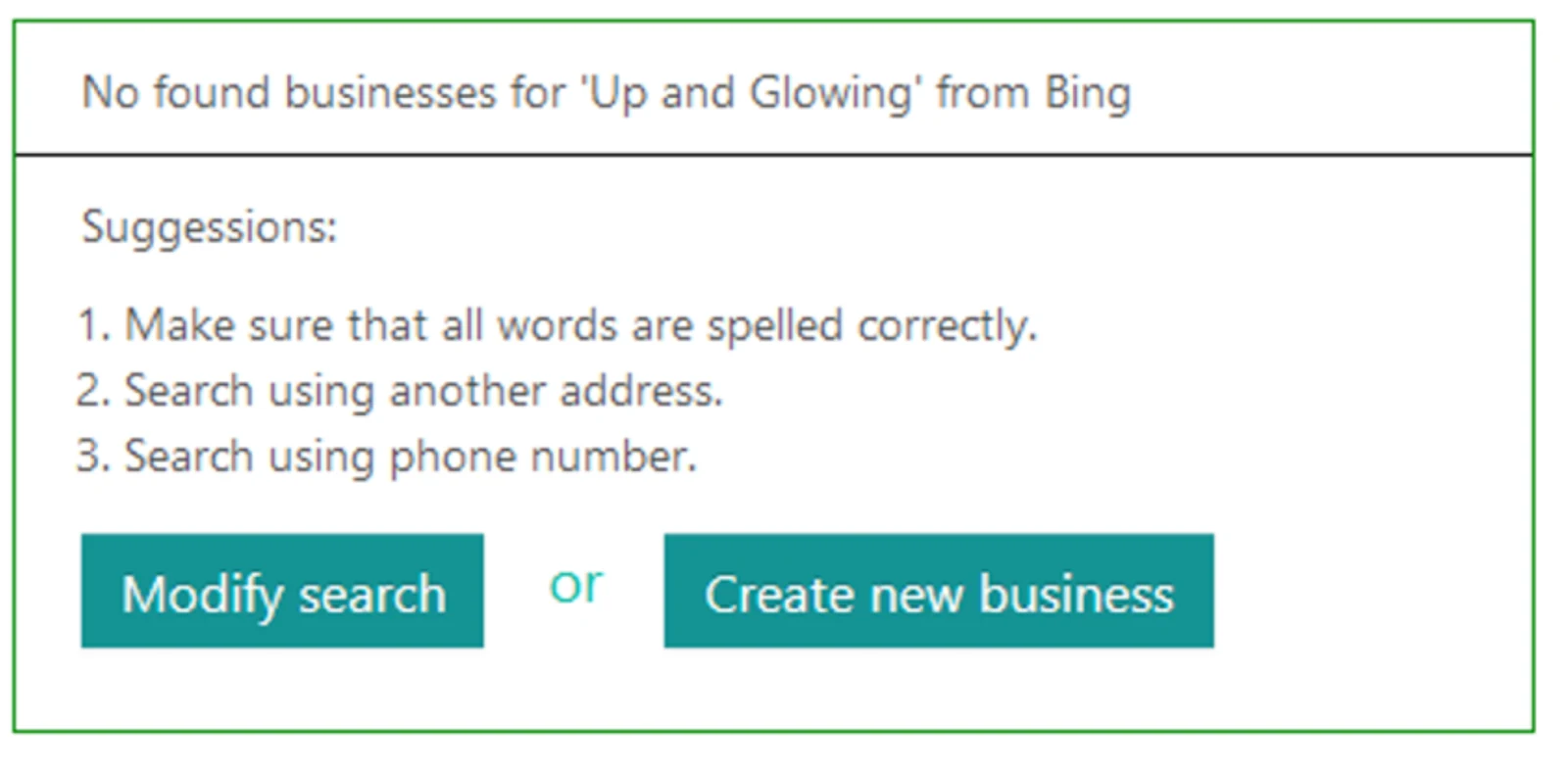
- In the search bar, enter your business details, like name, address, and phone number.
- Click "Search.”
Step 3: Claim Your Business and Verify
If Bing finds your business, it'll appear in the search results. Look for the button "Claim this business" and click on it. You'll be presented with different verification methods to confirm your ownership:
- Phone Verification: If your phone number is publicly listed, Bing may offer to call you and provide a verification code verbally. This option may only be available for some businesses.
- PIN by mail: A postcard with a unique verification code will be sent to the address associated with your business. Enter the verification code on the website to verify.
- Email Verification: In some cases, Bing may send a verification email with a link to your business email address. Click the link to complete the complete the email verification.
Step 4: Manage Your Listing
Once verified, you'll see a congratulations message and gain access to your business dashboard. You can now edit and update your business information, including:
- Name, business address, contact details, and website
- Customer reviews and responses
- Categories and descriptions
- Hours of operation
- Photos and videos
Adding a New Business Listing on Bing Places for Business: A Step-by-Step Guide
Here's a detailed explanation of each step involved in adding a new business listing on Bing Places for Business:
Step 1: Create or Sign In to a Microsoft Account
- Go to Bing Places for Business and click "Create a new business listing."
- Open a web browser and navigate tohttps://www.bingplaces.com/
- On the homepage, locate the button labeled "Create a new business listing" and click it.
Step 2: Enter your Business Details
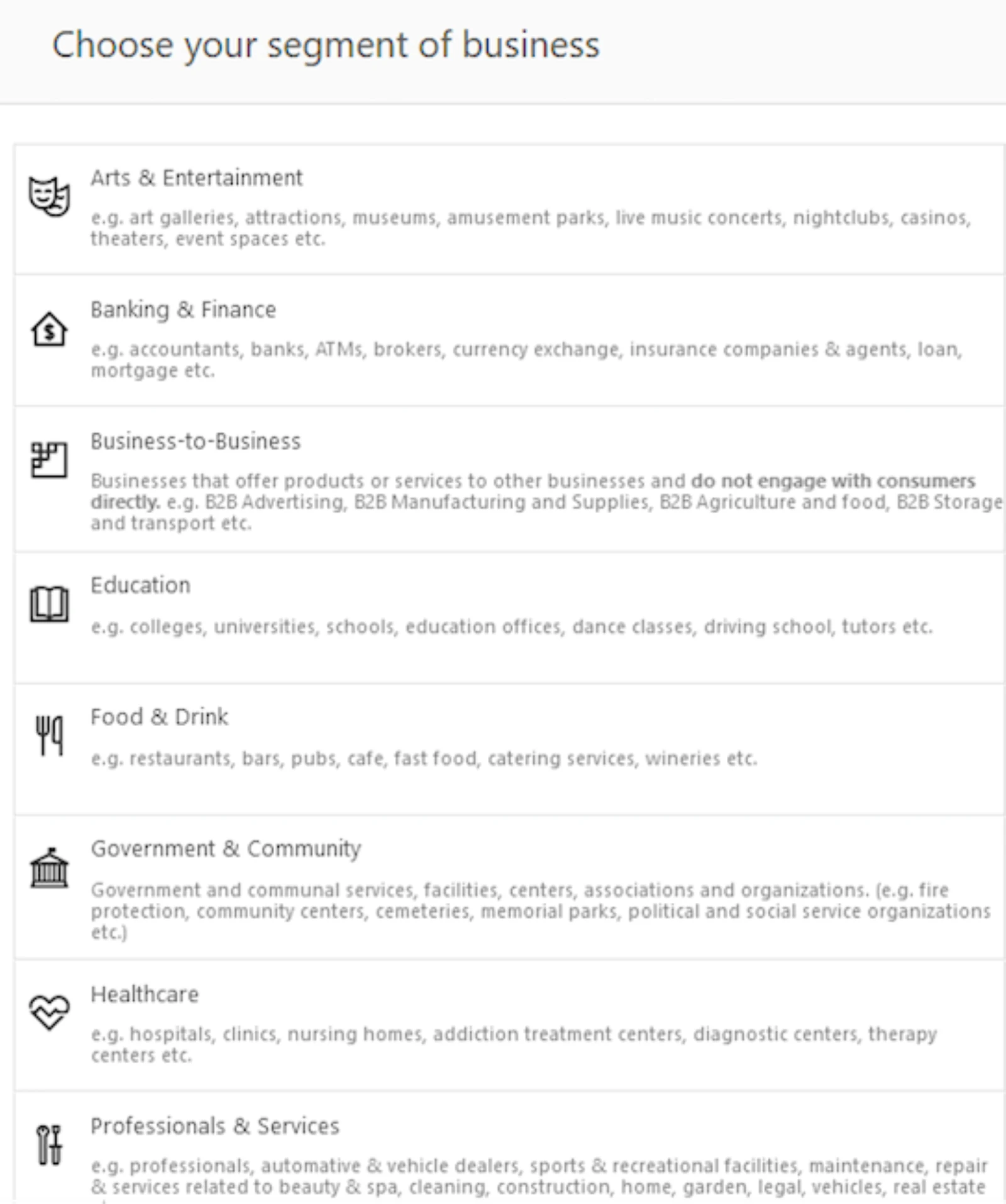
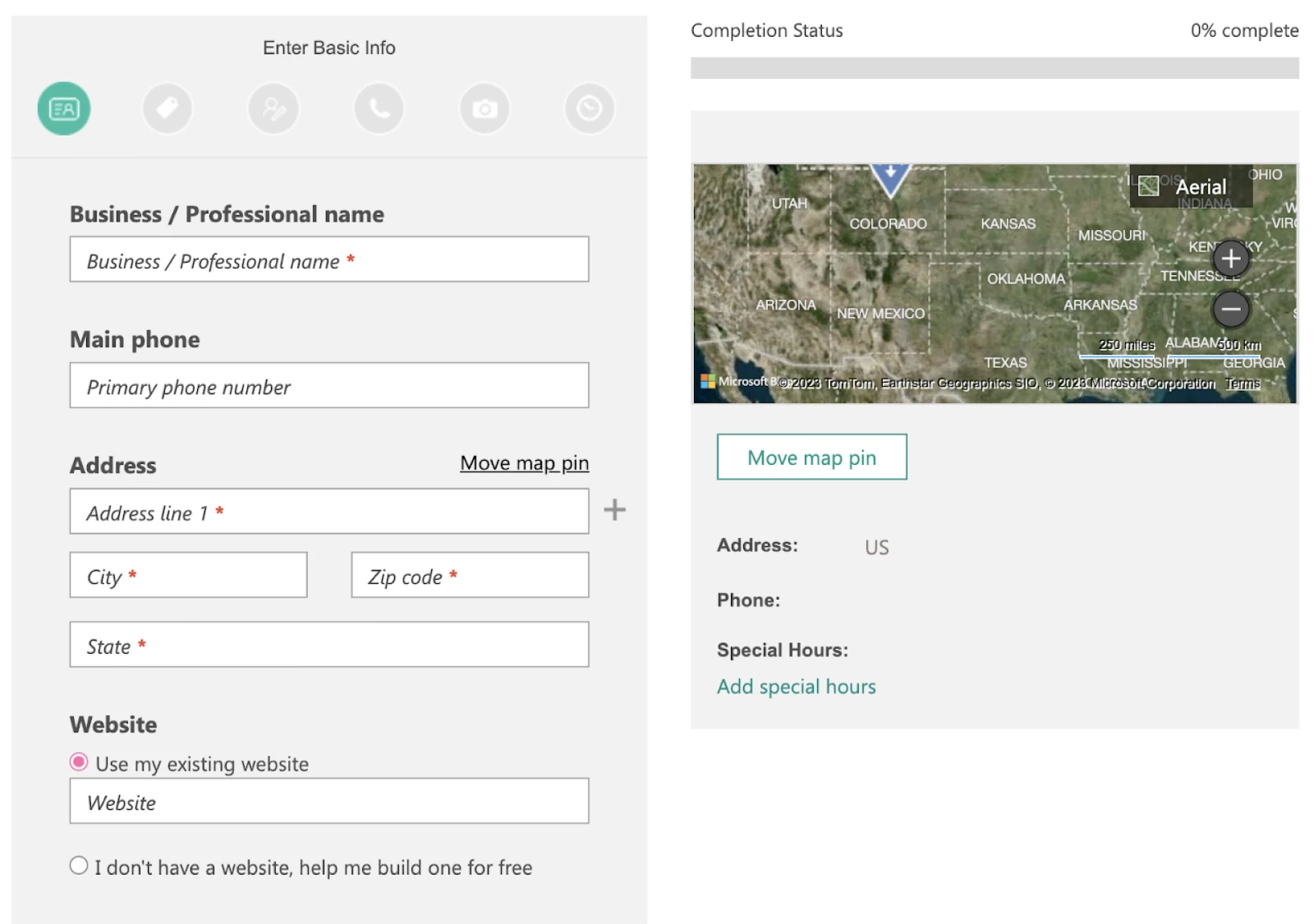
On the next page, you'll be presented with a form to enter your business information. This includes the business name, business address, phone number, website, and category.
Step 3: Add more information (optional but recommended)
Once you've entered the basic details, you have the option to add further information to enhance your listing:
- Phone Verification: If your phone number is publicly listed, Bing may offer to call you and provide a verification code verbally. This option may only be available for some businesses.
- Description: Write a concise and engaging description of your business, its offerings, and what makes it unique. Highlight key features and benefits to attract customers. Use consistent language to make your writing habits distinctive and easily recognizable among your customers.
- Photos: Add high-quality pictures showcasing your business storefront, products, services, or team. Visuals play a crucial role in attracting attention and building trust.
- Offers: If you have any ongoing promotions or special offers, list them here. This can entice potential customers and encourage them to choose your business.
Step 4: Choose your Verification Method
Bing requires verification to confirm the legitimacy of your business listing. You can choose one of the following methods mentioned above.
Your new business listing is now live on Bing!
How to Optimize Bing Places
Here are a few things you can do to optimize your Bing business listing.
1. Conduct Keyword Research
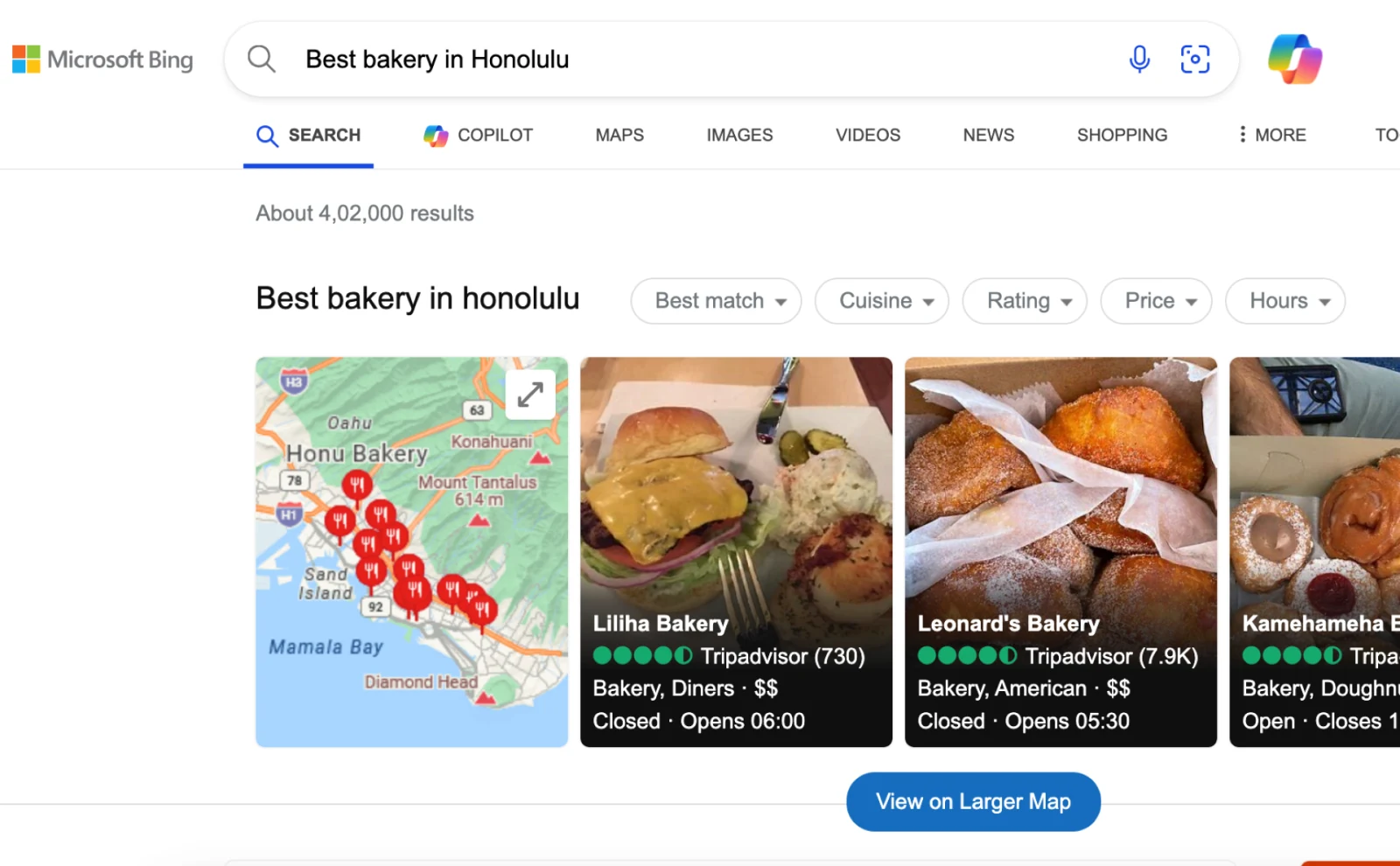
(Screenshot from Bing search by Jugraj)
Keyword research is about identifying words and phrases potential customers use to search for businesses like yours. Identifying relevant keywords helps improve your local SEO. As a result, your business appears in searches related to your offerings, increasing visibility and traffic.
You can use keyword research tools like Bing Webmaster Tools or Google Keyword Planner. Incorporate keywords naturally into your listing description, category selection, and business attributes.
2. Add High-Quality Photos
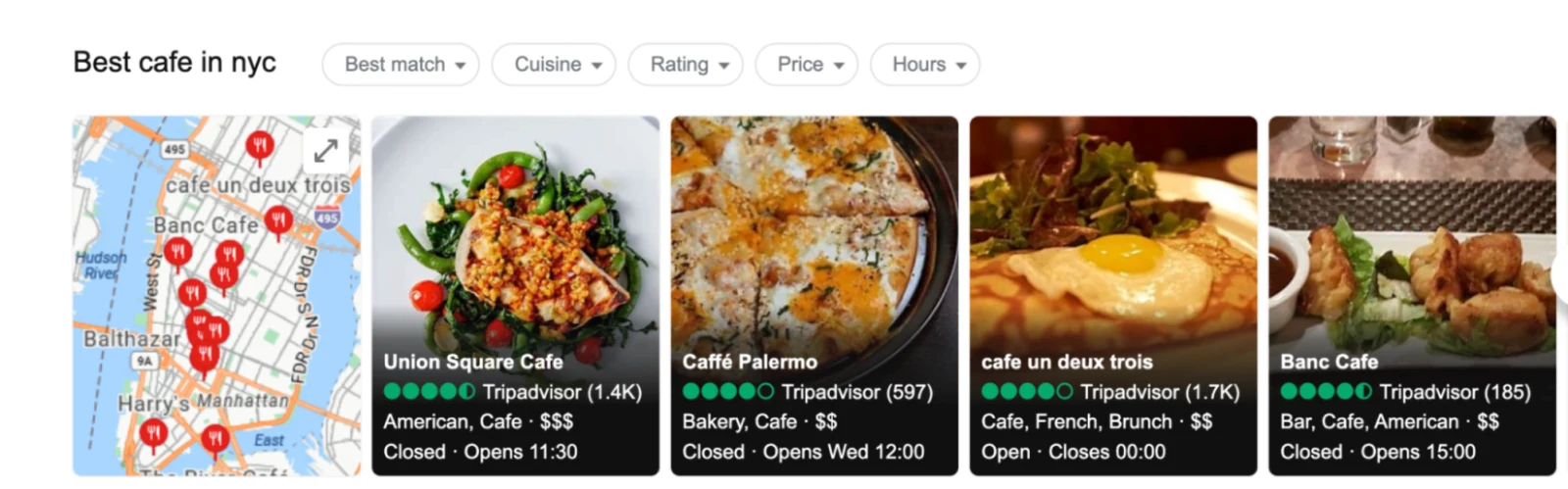
(Screenshot from Bing search by Jugraj)
Including visually appealing images to showcase your business can help create a first impression, grab attention, build trust, and provide essential information.
Make sure you use high-resolution, well-lit photos that represent your brand and offerings. Remember to include pictures of your storefront, interior, products, team, and happy customers. And most importantly, optimize image names and descriptions with relevant keywords.
3. Use Videos
Elevate your Bing Listing by incorporating videos with voiceovers created using an AI voice generator. Videos offer a dynamic way to showcase your products, services, and the ambiance of your physical location, making your listing more appealing and informative.
4. Encourage Positive Reviews
Positive reviews from satisfied customers, displayed publicly on your listing, can influence search rankings and build trust with potential customers, making them more likely to choose you.
You can politely request feedback from happy customers after transactions. Make sure you respond to all reviews promptly and professionally, thanking positive ones and addressing concerns raised in negative ones. It’s all part of healthy brand reputation management.
You can go one step ahead and offer incentives for leaving reviews, like discounts or promotions. This will encourage more people to leave reviews.
Recommend Read: How To Avoid 5 Most Common Mistakes When Managing Business Listings
Bing Places for Business vs. Google Business Profile
Both Bing Places for Business and Google Business Profile are crucial tools for local businesses looking to improve their online presence, but there are some key differences between both platforms.
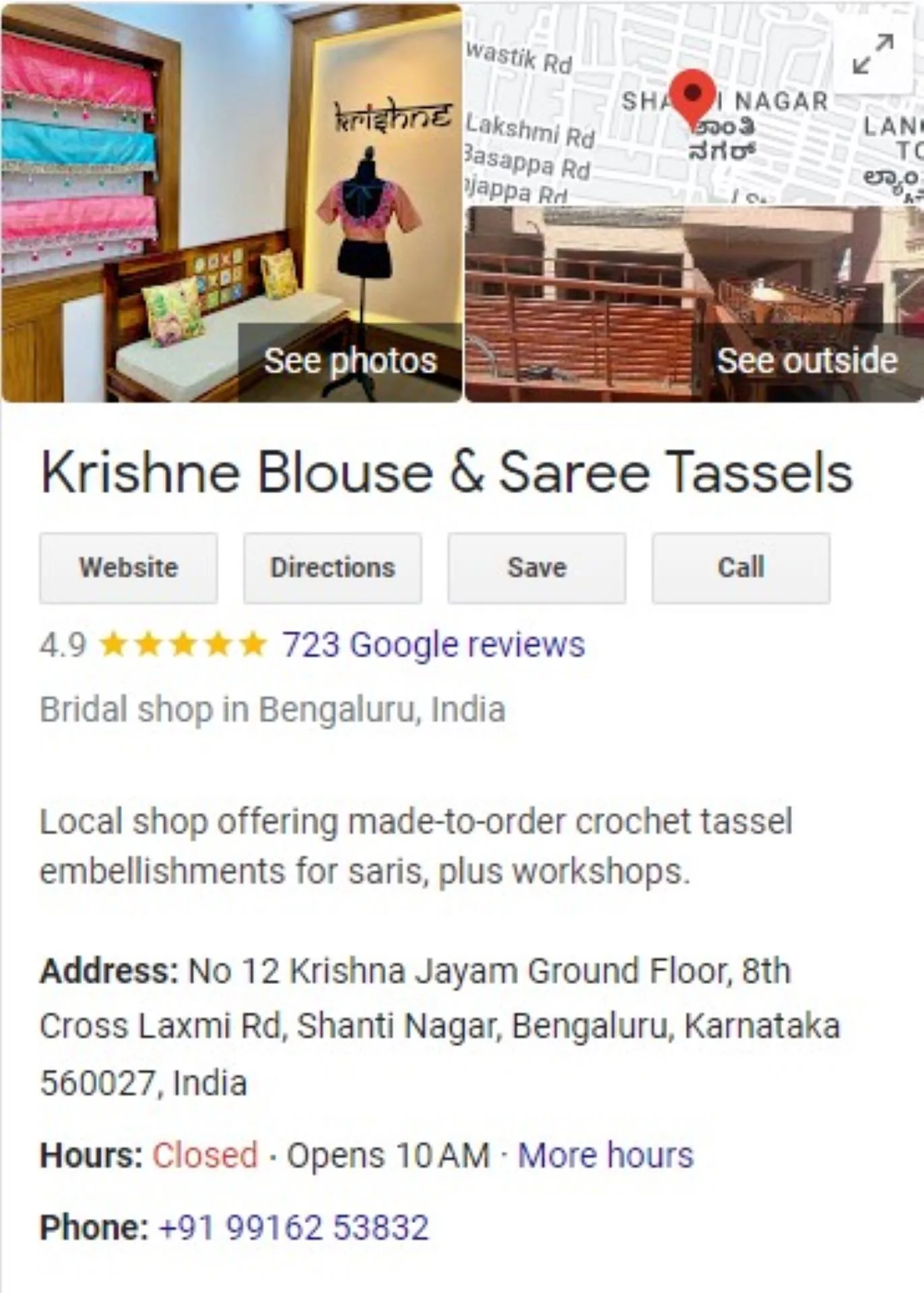
Bing offers a user-friendly dashboard for entering business details, with features like pre-filling information from verified Google listings and bulk uploads for multi-location businesses.
Likewise, the Google Business Profile interface is straightforward, but it doesn't offer pre-filling from Bing and has stricter quality checks for photos and details.
Second, Bing integrates with Facebook reviews. It has the potential to boost visibility for users with linked accounts. But its smaller user base translates to fewer overall reviews.
Google, on the other hand, has a larger and more active user base, leading to potentially more reviews. However, it doesn't directly integrate with other platforms, like Facebook.
Local listings dominate Bing, which makes it an excellent platform for local business owners to promote themselves. While Google Business Profile emphasizes optimizing websites and integrating specific keywords.
Conclusion
It's important to remember that a robust online presence requires a multi-pronged approach. While Bing Business Listing can be a valuable addition to your marketing strategy, it shouldn't be seen as a replacement for Google My Business.
By focusing on both platforms and optimizing your listings effectively, you can increase your chances of reaching a wider audience and attracting more customers.
If you're considering a Bing Business Listing, Cube Creative Design can assist with setup and optimization, content creation, managing your listing, providing insights into your listing's performance, and suggesting improvements.
About the author: Jugraj Singh
Jugraj is a freelance content and copywriter from Delhi, India who's great at writing compelling content that converts. When not writing, you can find him reading thoughtful books and engaging in socio-cultural discussions, which fuels his creativity.