ChatGPT probably already has a listing for your school. You didn't build it, and until last week you couldn't do a thing about it. On Nov. 10, 2026, OpenAI opened Business Hub, which lets you claim your business in ChatGPT, check the details it shows, and view basic insights.
I claimed Cube Creative Design's listing the next morning. This guide walks private school administrators through each screen and the two places schools get stuck: the DNS record and the Persona identity check. It also covers what claiming won't do, because OpenAI is refreshingly blunt about that.
Why Should a Private School Claim Its Business in ChatGPT?
Claiming lets your school manage the information ChatGPT gets from you: category, description, contact details, photos, location, and hours. It doesn't buy better placement, and advertising doesn't influence ChatGPT's independent answers. The payoff is accuracy: the details ChatGPT gets from you are current, and the rest of the web still has to agree.
BrightLocal's Local Consumer Review Survey 2026 found that use of ChatGPT and other generative AI tools for local recommendations rose from 6% to 45% in a year, making AI the third most popular source of business recommendations. That survey measured consumers in general, not parents. Parents are consumers, though, with tuition invoices.
OpenAI reported that 1.2 billion people use ChatGPT each week.
Now the honest part. Claiming "doesn't guarantee increased visibility or give you direct control over ChatGPT's independent recommendations." (Source: OpenAI Help Center) For how ChatGPT assembles school picks from other sites, read why a well-known school can still go missing from ChatGPT.
How Do You Claim Your Business in ChatGPT?
Sign in to ChatGPT, open Business Hub from the sidebar, and search for your school by name. Select the existing listing, confirm the account that will manage it, and choose one of the verification methods shown, such as phone or website domain. OpenAI then reviews the claim and emails you its decision.
I claimed Cube's listing at chatgpt.com/business-hub on Nov. 11. Here's what each screen showed.
Step 1: Select Your Existing Listing
The search showed Cube's existing listing, with our name and website, and a separate option to create a new one. Pick the existing listing. A second profile is how you end up with two versions of the truth. If it shows Contact support instead, the listing is locked, and that button is how you request access.
[IMAGE SUGGESTION: c1.jpg from chatgpt-business-hub-flier/screens. Alt text: Business Hub search results showing an existing business listing with its website, above a separate option to create a new listing.]
Step 2: Claim With an Account Your School Will Keep
The next screen shows the ChatGPT account that will manage the profile, plus a note that continuing accepts OpenAI's Businesses in ChatGPT Terms. Check which account you're signed in with.
Use a school-owned address that will outlive any one employee, such as admissions@ or marketing@. The admin who claims is the one who adds teammates and your agency later, and invitations can depend on the claiming account. A personal account is a problem waiting for the next resignation letter.
[IMAGE SUGGESTION: c2.jpg. Alt text: Claim screen in ChatGPT showing the account that will manage the business profile and the Businesses in ChatGPT Terms notice.]
Step 3: Choose a Verification Method
OpenAI verifies claims with methods "such as phone, business email, website domain, or Shopify," and the options vary by business. (Source: OpenAI Help Center) Cube saw only two: Business phone and Website domain.
Phone sends a code by text or automated call, which works if the person claiming can answer the school's main line. If your phone tree has seven options and none is "claim our ChatGPT listing," choose the domain.
[IMAGE SUGGESTION: c3.jpg. Alt text: ChatGPT screen titled Choose how to verify your claim, with Business phone and Website domain options.]
Step 4: Add the TXT Record to Your DNS
The website domain method gives you a DNS TXT record. OpenAI's instructions say to copy the type, name or host, and value exactly, and to ask whoever manages your domain to add it. Ours had a host starting with openai-business-claim and an expiry about 24 hours out.
We added it in Cloudflare, it showed on public DNS within seconds, and Verify domain worked on the first try. Yours may take longer. The bigger risk is the expiry, so send the record to your web agency or IT lead the same day. This route suits schools whose agency or IT team already manages DNS.
[IMAGE SUGGESTION: c4.jpg (value is blurred). Alt text: ChatGPT domain verification screen showing a TXT record type and host name with the record value hidden.]
Step 5: Wait for the Claim Decision
Our screen then showed Claim received, Review in progress, and Decision reached, with the decision emailed to the account owner. You can withdraw the claim during review (OpenAI's article calls it Cancel claim). Approval gives you access in Business Hub. It doesn't give you the blue check.
[IMAGE SUGGESTION: c5.jpg. Alt text: ChatGPT claim status screen showing Claim received and Review in progress.]
Download the One-Page Claim Guide
Download the one-page guide: How to Claim Your Business in ChatGPT (PDF). No form, no email address. It covers the five claim steps with screenshots, the two TXT lines to send us the same day if Cube manages your domain, and what to do after approval.
Verify Your Identity With Persona
Persona turns a claimed listing into one your school can manage. After the claim is approved, OpenAI requires Persona verification before you can publish changes to your business information, view insights, or create an eligible business agent. The blue verified check appears only after Persona approval, not after the claim.
You may need a government-issued ID, business registration information, and proof that you're authorized to represent the business. If you verified the claim another way, open the Business tab, select your profile, find Complete verification with Persona, and select Verify. Otherwise, select Verify with Persona, then Continue to Persona.
OpenAI reviews the submission and emails its decision. Submitting doesn't mean approved. If a check fails or expires, follow the email and select Try again if it's offered.
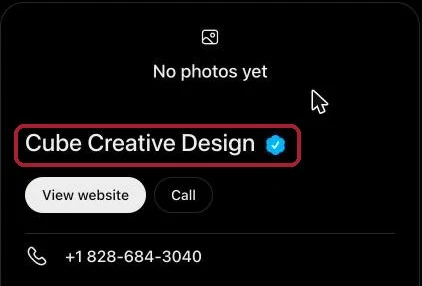
Our listing after Persona approved us. The blue check sits next to the business name.
When Your School's Legal Name Isn't the Name on the Sign
OpenAI's FAQ says the business name, address, and any registration or tax number you provide must match your official business records. Plenty of schools operate under a name that isn't the legal entity: a parish school owned by its church, a diocesan school, or a school run by a nonprofit board.
Before you start, get the exact legal name, registered address, and tax ID from your business office, and confirm the submitter is authorized to act for that entity. Ten minutes with your business manager beats a failed check.
Update Your School's Information
After the claim and Persona are both approved, open your profile in the Business tab and select Edit business info. Ours had five tabs: About (business category and a free-text "More about your business" box), Contact (phone, business email, and website), Photos, Location, and Hours. A live preview of your listing sits beside the form. OpenAI's help article also mentions a logo and delivery and return policies, which we didn't see on our profile. Schools can skip the return policy either way. Nobody's returning a seventh grader.
Everything you add must follow the Businesses in ChatGPT policy. OpenAI reviews and publishes changes, updates take time to appear, and ChatGPT may also use other sources when it answers questions about your business.
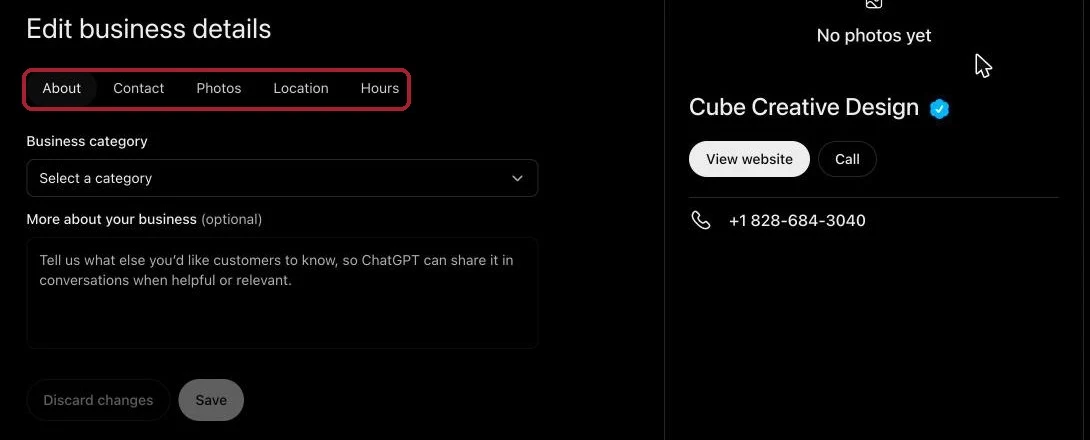
The Edit business details screen. Fill in every tab, because a blank hours or location field leaves ChatGPT to guess from other sources.
That last point matters most. Keep your "More about your business" text consistent with your website's About and Admissions pages and your Niche and GreatSchools profiles. If ChatGPT says grades 6-12 and Niche still says 7-12, you've handed the model two answers. And when an AI tool is reading, plain text on your website beats design.
Fill In Every Tab: What We Added and What Tripped Us Up
Here's what we filled in on Cube's own listing, tab by tab, and what to have ready for your school.
- About: Pick a category from the list (search it, because it's long). The "More about your business" box allows 300 characters, so write it before you open the form. Name your grades, your school type, your town, and one fact a parent can check on your website.
- Contact: Phone and website came over from the existing listing. Adding a business email sent a six-digit code to that inbox, and it didn't save until we typed the code. Have someone at that inbox ready.
- Hours: Set each day and pick a time zone, or the form won't save. Use your office hours, the ones a parent can actually call.
- Photos: Add your logo and real photos of your campus, classrooms, or events. We uploaded five at once, and each one goes to OpenAI for review. Skip stock photos.
- Location: Search and pick your campus address from the suggestions. Save stays off until you pick one. Cube works remotely, so we left ours blank. A school shouldn't.
- Invite: Our first try at adding a teammate showed "Couldn't add member." Select Try again, and the teammate appears under People.
What Business Hub Insights Show a School
Insights show aggregate activity over the past 28 days: mentions, website clicks, and discovery topics (common themes in answers that mentioned or cited your business). For a local business, a mention counts when ChatGPT shows a result for that location, even if the family never opens the listing.
A blank metric doesn't necessarily mean zero. It can mean activity hasn't reached the reporting threshold yet.
A Note on Business Agents
Business agents, also new, answer customer questions in a separate chat. For now they're limited to eligible ecommerce and online service businesses in the U.S., so most schools likely won't qualify yet.
How Do You Give Teammates and Your Agency Access?
The admin who claimed your school adds teammates and your agency inside Business Hub: select Invite, then add each person's email as a business admin. Each person signs in with their own ChatGPT account. Don't forward a personal claim invitation to share access. If an agency invitation is blocked, OpenAI says to contact its support team to check the available options.
What Does Claiming Look Like for a 600-Student College Prep?
Picture a religiously affiliated college prep with about 600 students, owned by the church that founded it. The director of admissions signs in with the admissions@ account, picks the existing listing, and chooses Website domain. She forwards the TXT record to the web agency before lunch, then waits for OpenAI's email.
For Persona, the business office supplies the church's legal name, address, and tax ID. After approval, she matches the "More about your business" text to the Admissions page on grades and tuition range, fills in hours and location, and invites the marketing coordinator and the agency as business admins.
Nobody promised her more mentions. She gets a profile that matches with her website, Niche page, and GreatSchools page, owned by an account that will still work after she's promoted.
Claim the Listing and Keep the Keys in the School's Name
Claiming your business in ChatGPT takes minutes and one DNS record, then a Persona check that rewards anyone who brought the right legal paperwork. It won't make ChatGPT like your school more. It makes sure the facts you provide are right and that a school-owned account holds the keys.
If you'd like help with the TXT record, the Persona paperwork, or getting your website and directory profiles to tell the same story, send me a message and we'll sort it out on a 20-minute call. No contract, no pitch.
Frequently Asked Questions
Do We Need an Ads Account or Enterprise Plan to Claim Our School?
No. OpenAI says you don't need an Ads account or a ChatGPT Enterprise agreement to claim an eligible business. Claiming, publishing a business agent, and advertising are separate, and after your claim and Persona verification are approved you can manage your information and use available insights without running ads.
What If Someone Else Already Claimed Our School’s Listing?
Open the profile, select the more options menu (•••), then select Dispute ownership. You'll verify with Persona that you're authorized to represent the school. OpenAI notes that claiming a profile or disputing ownership doesn't change its visibility in ChatGPT.
What If We Can’t Find Our School in Business Hub?
Search for both the name families use and your legal name. OpenAI says eligible online businesses may see an option to add a listing, while local stores and restaurants can currently claim only an existing U.S. listing. Its article doesn't say where schools fall, so if no match appears, contact OpenAI Support before you create a new profile.
Does Claiming Our Main Campus Cover Our Other Campuses?
No. OpenAI says claiming the main brand doesn't claim its locations, and each distinct brand is managed separately. Central management across a parent organization's brands and locations isn't available yet, so a school with several campuses should plan to claim each one.
Will Claiming Our School Help It Show Up in ChatGPT More Often?
Not by itself. OpenAI says claiming doesn't guarantee increased visibility and that advertising doesn't influence ChatGPT's independent answers. What helps is consistent, accurate information across your website and the directories ChatGPT reads, the same groundwork behind local SEO for private schools.