
Years ago, taking the background out of a photo used to be pretty frustrating work. You’d sigh before even starting because you knew it would eat up your time. It wasn’t rocket science, but the whole thing felt slow and irritating.
You’d load the picture into your editor, zoom right in, and try to trace the edges carefully. One tiny mistake and you were hitting undo, starting over again. Even on an easy image, ten or fifteen minutes could disappear just like that.
But things have changed a lot.
Now you simply upload the photo and within seconds the background is gone — neat and effortless. The better AI tools today are really impressive at spotting people, objects, and tricky details without any manual work from you.
Of course, not all of them are great. A few leave rough, jagged outlines, some soften the image too much, and others make you create an account before letting you test them.
That’s why it makes more sense to avoid jumping between tools and just use the reliable ones that give you solid results every time.
What Makes a Good Background Remover
Removing the background itself is not the main challenge anymore. Most modern tools can technically separate the subject from the background.
The real difference appears in the details.
Edges are the first thing people notice, even if they don’t consciously think about it. If the cutout looks unnatural, something immediately feels wrong. Hair, shadows, and small objects are the most difficult elements for automated tools.
Image quality is another important factor. Some tools remove the background correctly, but compress the image too much. When the image is reused later, it may appear blurry or washed out.
Usability also matters. The best background removers follow a simple workflow: upload the image, wait a few seconds, and download the result.
If the tool requires multiple confirmations, account creation, or complicated steps before producing a result, it interrupts the process and slows everything down.
Best Tools to Remove Background from Images
With so many background removal tools floating around the internet, it can be tricky to know which ones actually work well. Fortunately, a few stand out for their consistent performance across different image types.
The ones highlighted here are particularly practical. They vary in focus — some prioritize pure speed, others offer more room for manual adjustments and creative control.
1. Remove Background
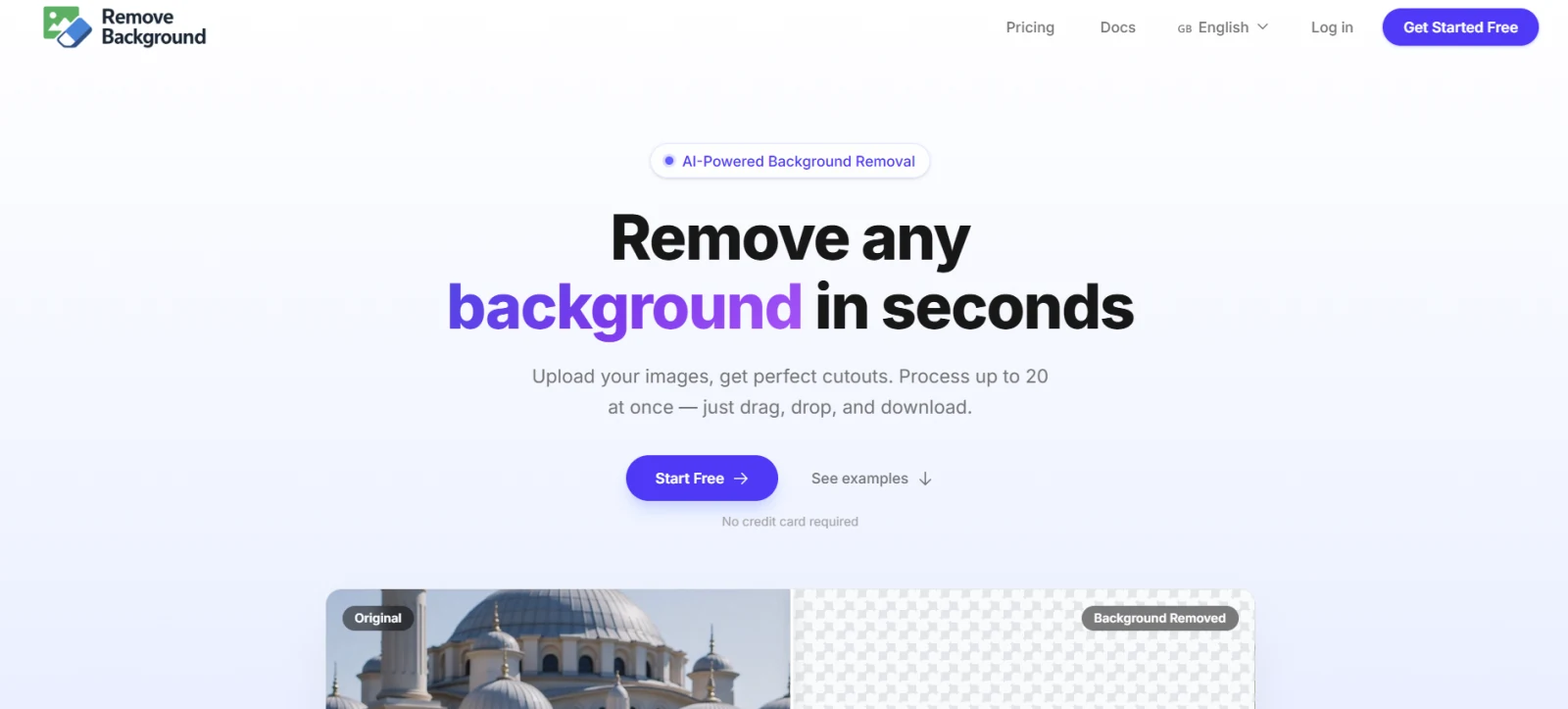
Some tools feel like they’re trying to be more than they need to be. Extra panels, settings, things that don’t really help unless you already know what you’re doing.
The tool Removebackground.online doesn’t go there.
It feels almost bare in comparison. Upload the image, wait a few seconds, and you get the result. That’s it. No detours.
What stands out:
- It loads quickly and doesn’t stall
- No account wall right away
- Nothing distracting on the screen
- Works fine even on weaker machines
Where it works best:
- Profile photos where you just need a clean cut
- Simple product images without too much going on
- Quick visuals you don’t want to spend time on
It’s not trying to be precise down to every pixel, and that’s fine. For most uses, it gets close enough without slowing things down.
Feels more like a quick tool than something you have to “use properly.” And that’s kind of the point.
2. Removebg
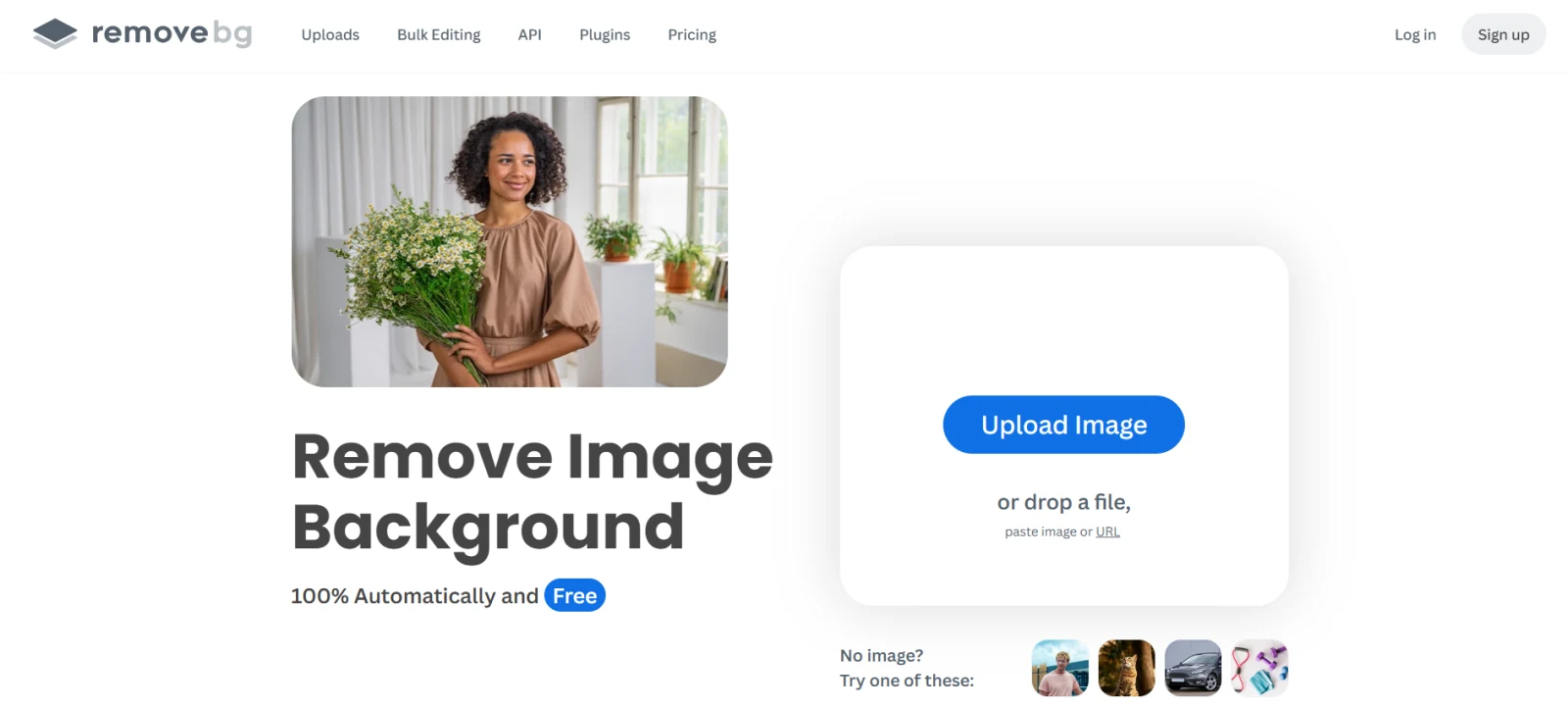
This one feels more polished overall.
It’s been around longer, and it shows. The results are usually predictable, which is something you start appreciating after trying less stable tools.
Hair comes out cleaner than expected most of the time. Edges feel softer in a good way, not cut out too sharply. You don’t have to look too hard to see the difference.
What stands out:
- Edges look more natural
- Works well with portraits
- Consistent output across different images
- Doesn’t need much fixing afterward
Limitations to keep in mind:
- Free downloads are of lower quality
- Full resolution is locked behind payment
- Frequent use hits limits quickly
It’s one of those tools that just works, but only up to a point before it starts asking for something in return.
3. Canva Background Remover
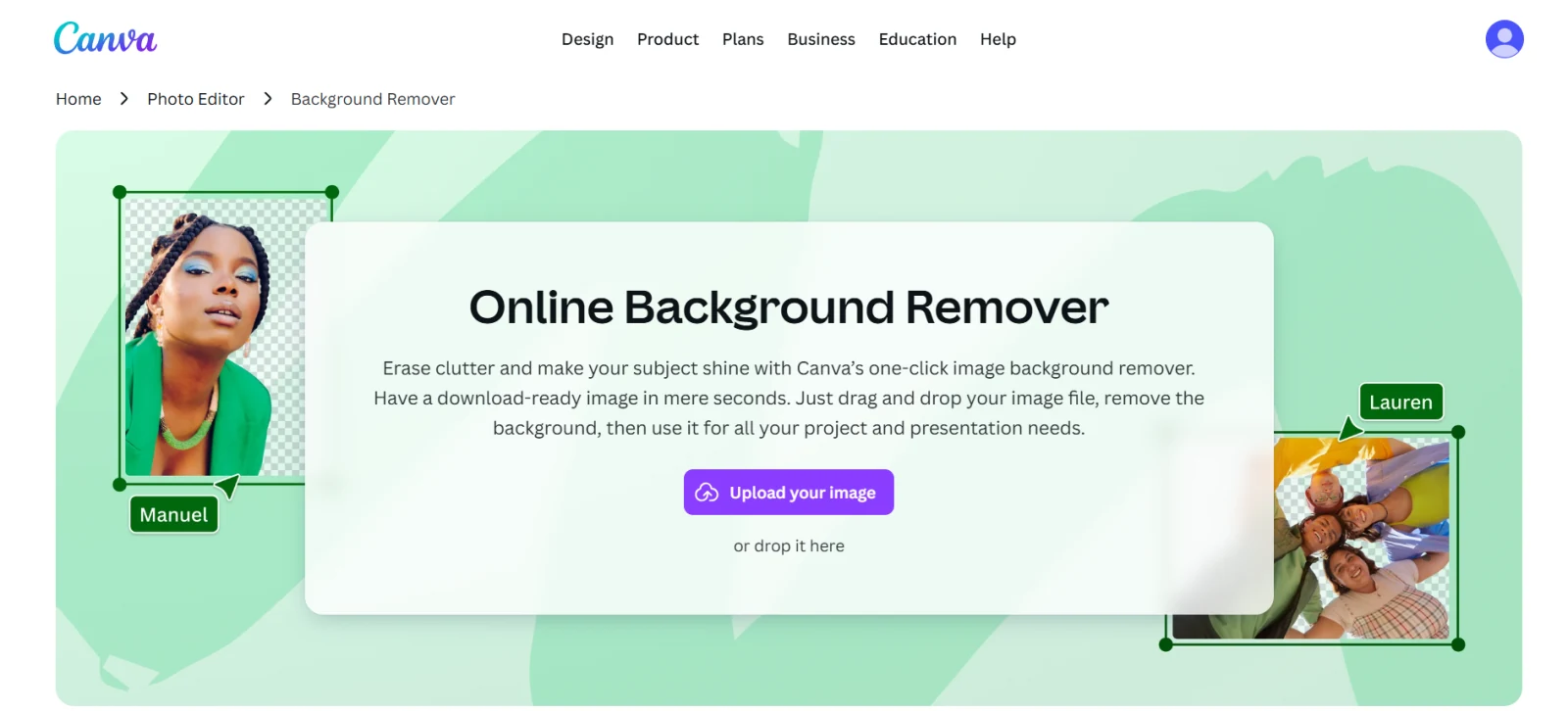
This one feels different because it’s not really a separate tool.
It’s part of something bigger.
You upload an image, remove the background, and instead of leaving, you just keep going. Add text, move things around, build something on top of it.
That changes how it’s used.
What stands out:
- Everything happens in one place
- Easy to keep editing after removal
- Interface feels familiar even if you’re new
- Good for quick content setups
Limitations:
- Locked behind a paid plan
- Not always perfect with small details
- Depends on Canva’s workflow
The background removal itself is decent. Not perfect, not bad. It just fits into a larger process, which makes it convenient if you’re already there.
4. Adobe Express Background Remover
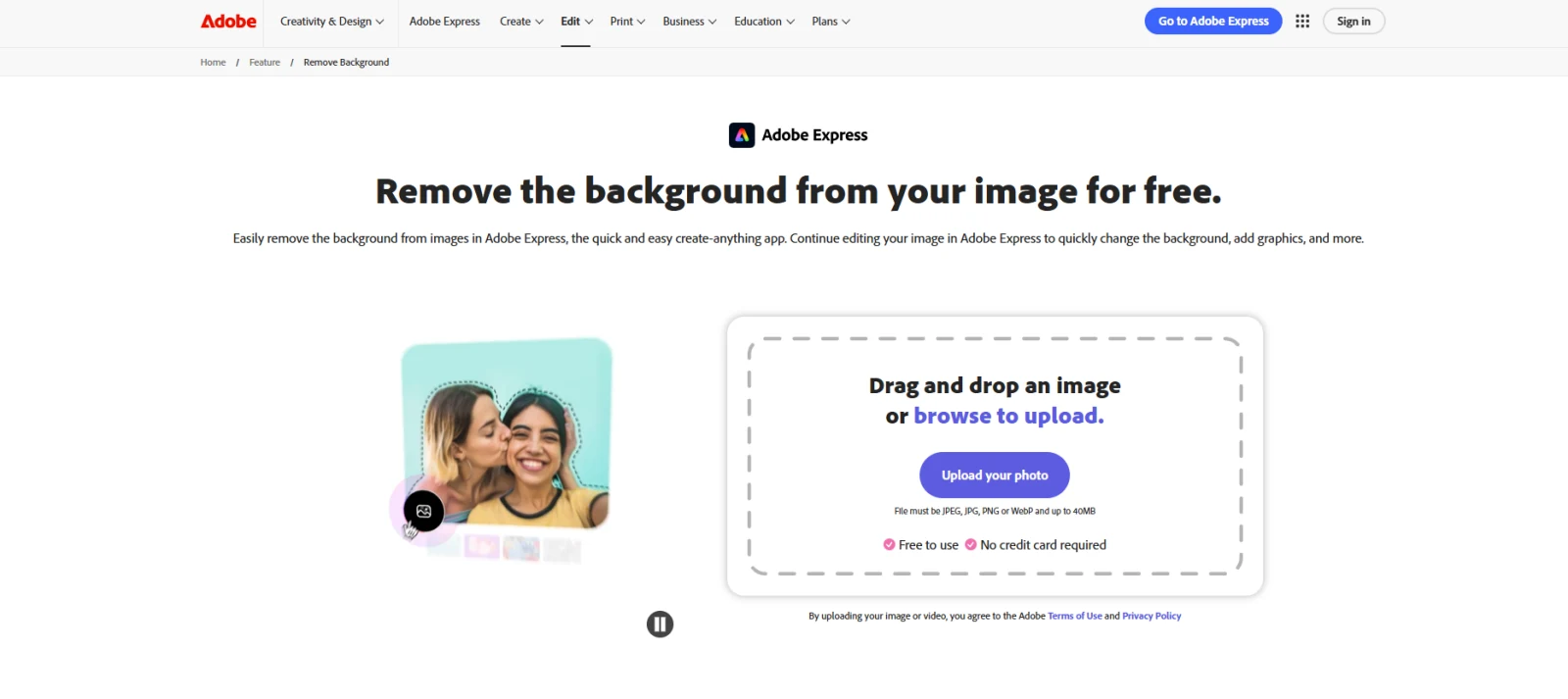
This one sits somewhere in the middle.
It doesn’t try to be the fastest or the most detailed. It just works in a steady way.
Upload, process, download. No surprises.
What stands out:
- Results stay consistent
- The interface is simple enough
- Handles most normal images fine
- Connected to other Adobe tools if needed
Limitations:
- Not much control over details
- Requires login
- Not built for complex edits
It’s the kind of tool you use when you don’t want to think too much about it. Not exciting, but reliable.
Free vs Paid Tools
At first, most background removal tools look pretty much the same. You upload a photo, wait a moment, and download the result. Simple enough.
But after using them a few times, the real differences start to show. Free versions usually come with limitations — lower resolution downloads, daily caps, or noticeably slower speeds. For occasional use, these aren’t a big deal.
Paid tools, on the other hand, remove most of those frustrations. You get higher-quality exports, the ability to process multiple images at once, and sometimes even direct integration with design programs.
Casual users are often perfectly happy with the free options. But if you're a designer or run a business where image editing is regular work, paying for a solid tool can save you time and give much more reliable results.
When Automatic Background Removal Works Best
Automatic background removal tools perform best when the image contains a clearly defined subject.
Photos with good lighting, simple backgrounds, and strong contrast between the subject and the background usually produce the cleanest results.
For example:
- portraits with neutral backgrounds
- product photos on solid surfaces
- objects photographed against plain walls
Challenges appear when images become visually complex. Busy backgrounds, overlapping elements, or very thin objects can confuse automated tools.
In these cases, the software may incorrectly remove parts of the subject or leave unwanted background fragments.
While AI-based tools continue to improve, complex images sometimes still require manual editing.
Final Thoughts
Background removal is no longer something you have to plan around. It’s just something you do. Upload the image, wait a bit, move on.
The tools above don’t try to solve everything. They just make this one thing easier. Some do it faster. Some do it cleaner. Some fit better into whatever you’re already doing. Most of the time, that’s enough.